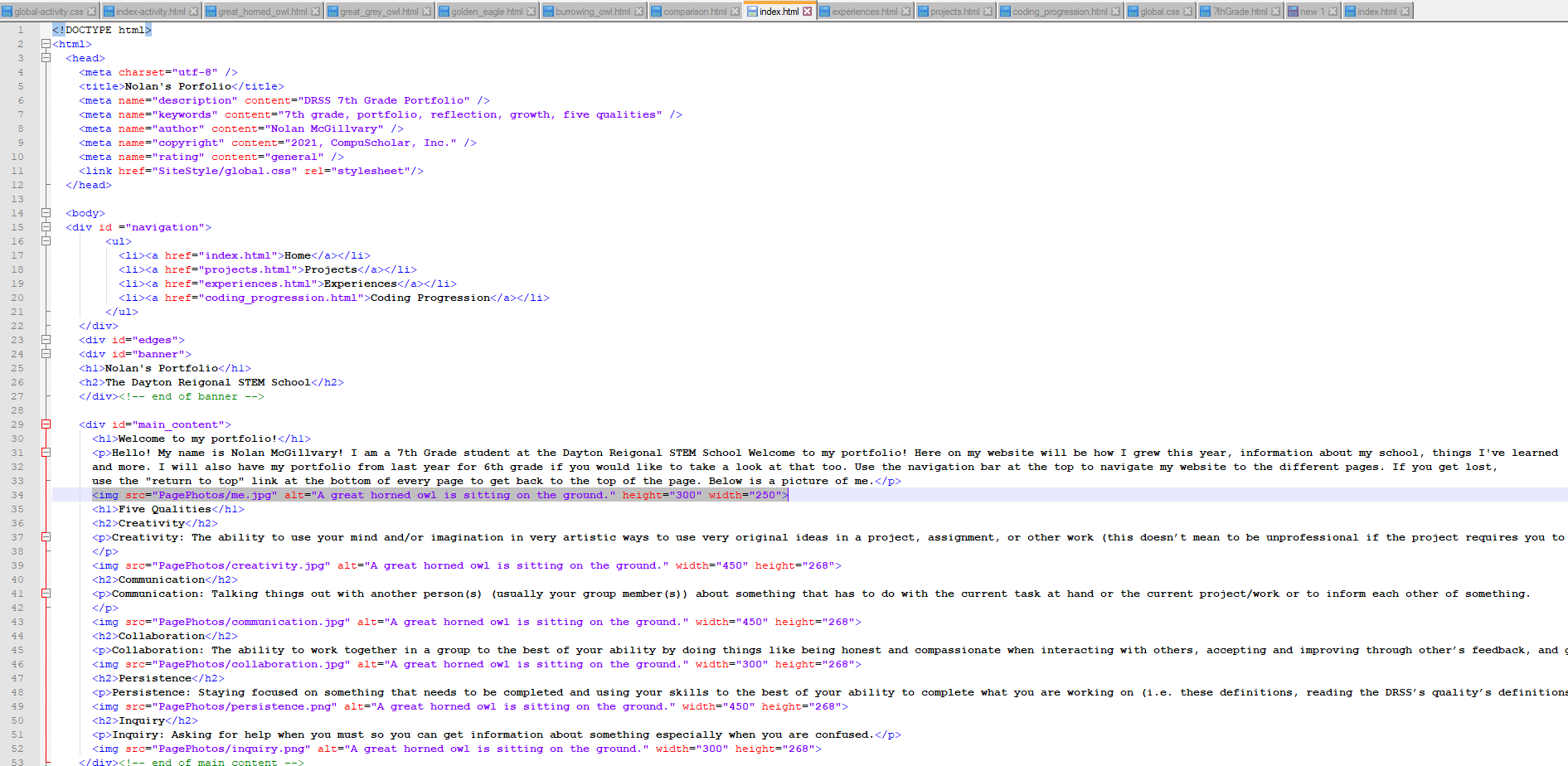
Code That I Have Mastered
There are so many types of tags and coding to explore. So far this is what I have learned and I have worked enough to completely master in 6th grade and 7th grade here at DRSS. To look at my 6th Grade portfolio, click here.
| Grade Mastered | Code Syntax | Explanation |
|---|---|---|
| 6th Grade | < p > | The <p> tag is the tag you use to make paragraphs in HTML. You put these tags around most of the text on your webpage. I used this on portfolio. |
| 6th Grade | < div > | The <div> tag is used to separate parts of your webpage from other parts. If you just simply use the <div> tag, it adds a space. However, you will most likely use the <div> tag when trying to make large parts of your webpage be stylized easier in CSS> This is because the <div> tag can go around a large chunk of your webpage without confusing it unlike most tags would (like if your tried to put a <p> tag around a large part of your code it would surely be confusing to your webpage and mess things up but the div tag wouldn’t do anything like that) so this way you can easily add ids and classes to large chunks of your page to stylize and personalize select parts of your page easily using CSS. I used this on portfolio. |
| 6th Grade | < img > | The <img> tag is used to add a picture to your webpage. The code is <img=”insertnameofimagehere.jpg” src=”C:Users/Username/Put/Your/File/Path/Here” alt=”put a description of the image for people using screen readers here”/> (yes I just did that all from memory and I am proud of myself). For the part that says img= (which means image) you would put the name of the image with quotes around it. For src= (which means source) you would put either the relative file path to the image from where your HTML file is or you could just give it the full file path with C: (or D: if that’s on your computer) your username and all. And lastly the part where it says alt= (which means alternative) you would put a description of the image for people with a screen reader so the screen reader can read that description to people who can’t see or with some other disability. I used this on my portfolio. |
| 6th Grade | HTML | HTML is the file type that you put tags in to create a website. It stands for Hyper Text Markup Language. You would edit it most likely with Notepad++. I used this for portfolio. |
| 6th Grade | < head > | The <head> is where you put all your meta tags in. The tags put in here won’t show up on a webpage, it’s just stuff that the user can’t see, but the website needs to know, like what your CSS file is, what the tab at the top should say instead of simply the file name, who made it, the copyright, etc. I used this on portfolio. |
| 7th Grade | < a > (anchor tags) | The <a> tag is used to link another webpage to the one you are already on. You could use it to create a navigation bar. You must put an href= and then put in quotes the file path to get to the link if it’s something you created or put the url (what you would type in the search bar on a search engine to immediately get to website) from online if it’s something by somebody else. Simply put a # in the href to make it reload the page. You can also make it move to certain parts of the webpage using ids by using “#idnamehere” in the href. You can also put “mailto:email@email.com” (apparently it works on Word too) in the href to make it open up their default email sending app with a new one addressed to the email that it after the words “mailto:” |
| 7th Grade | Navigation Bar | The vocabulary term “navigation bar” is a part of the webpage that is used to navigate to other webpages usually other webpages you created that are attached to that one. You use a lot of <a> tags when making one of these! I learned about this in |
| 7th Grade | ID | An ID is used to stylize specific parts and pieces of your webpage in CSS. Any tag can have an id by putting <whatthetagis whatthetagis id=”idname”> in the opening tag. To select this whenever you need to either with an <a> tag or in CSS you type it as #idname. Everything in between the opening tag and the closing tag that you assigned the id to is now a part of that id. Each ID name has to be unique. |
| 7th Grade | Classes | Classes are very similar to ids. You assign something a class the same way you do an ID but instead you put class and when referring to it any way anywhere else like in CSS you put .classname so you put the class name but you put a period in front. The main difference between classes and id’s is that every ID has to be unique each time you give something an ID so if you wanted to have multiple different parts of your webpage to be styled in a certain way (like multiple paragraphs) you could do that with a class, but not an ID. |
| 7th Grade | background-image | Background-image is a CSS property you can use in CSS to have an image set as the background for a part of your webpage. You would put “background-image:urlrelative/file/path/from/css/not/your/HTML/goes/here)” in your CSS to set the background image. |
I went from this

to this